


One of the main issues with converting PDFs to Word is preserving formatting. You do not want to lose fonts, layout, images, or alignment during the conversion process. Either for business purposes, such as company compliance, or for personal use, getting a proper Reliable PDF editor that can provide clean conversion is essential.
Many free online tools can convert PDFs to Word, but they often come with issues like broken layouts, missing fonts, image loss, or other security concerns.
Table of Contents
Common issues with free PDF to Word tools!
There are many free tools online that provide PDFs to Word features, but many of them fall short when it comes to quality and reliability. Below are some common problems users face with such tools:-
- Distorted layouts and broken formatting
- Missing images, tables, or charts
- Fonts not matching the original document
- Inability to convert scanned PDFs accurately
- And uploading files to unknown servers raise privacy concerns
These problems can be annoying, especially if you are working with something important, any legal files, business documents, or any personal docs where formatting really matters.
Key criteria to consider when choosing a PDF to Word converter
What to look for in a good PDF to Word converter?
So before you select a PDF to Word converter, make sure it checks these boxes:
- Preserves layout and formatting: The converted file should look just like the original.
- Handles images and tables well: Especially if your PDFs have visuals or data.
- Works offline: Tools that don’t need internet help keep your documents private.
- Easy to use: Minimal steps and no technical jargon
- Supports batch conversion: If you often convert multiple files at once.
Keeping these criteria in mind before choosing your PDF to Word converter will save you from endless formatting corrections later.
There are several Tools available for converting your PDF into Word, like: –
- Adobe Acrobat
- Systweak PDF Editor
- Wondershare PDFelement
- SmallPDF
- Nitro PDF Pro
- Foxit PDF Editor
- Sejda PDF
- iLovePDF
- PDF-XChange Editor
While many of these tools perform well in general, what truly sets them apart is how accurately it preserves formatting like fonts, images, layout, and spacing when dealing with complex documents.
So here are my top 5 picks that are best for converting PDF into word document without losing formatting.
1. Adobe Acrobat Pro
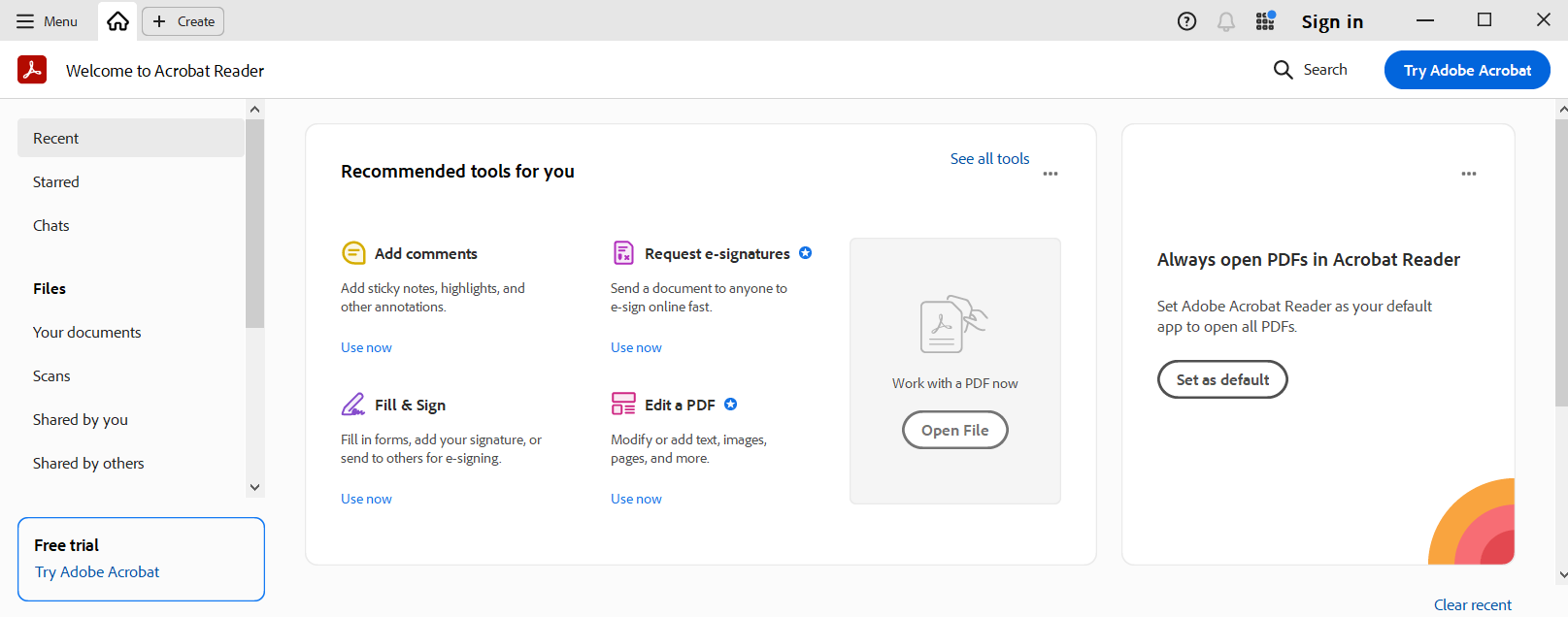
As the creator of the PDF format, Adobe offers industry-leading accuracy. It handles complex documents with ease, though it comes with a premium subscription price and a steeper learning curve for beginners.
2. Systweak PDF Editor
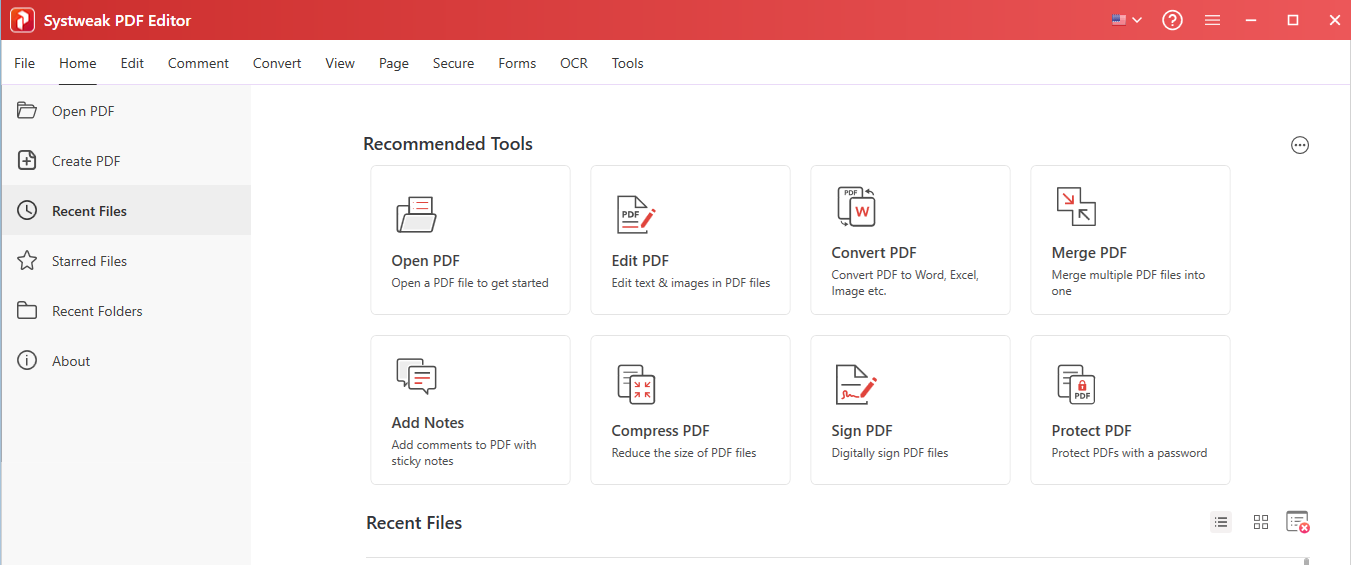
Systweak PDF Editor is not another typical converter; it’s a secure offline tool that maintains your privacy and lets you convert PDFs that can’t be uploaded online. It is packed with powerful features that allows you to edit, convert, annotate, sign, protected. The best part is, it keeps your formatting intact while converting, which means the format such as font, styling, size etc remains same.
How to Convert PDF to Word with Systweak PDF Editor:
You don’t need any technical skills to get a perfect conversion. Just follow these simple steps:
Click on the ‘Open PDF’ button and select your document.
Navigate to the ‘Convert’ tab on the top toolbar and select ‘PDF to Word’.
Click the ‘Convert to Word’ button and choose your destination folder.
Once the conversion is finished, a message will appear. Click ‘OK’ and select ‘Open’ to view your perfectly formatted Word document.
3. Wondershare PDFelement
PDFelement is a great alternative for those who like an interface similar to Microsoft Office. It offers powerful OCR (Optical Character Recognition) for scanned documents and generally keeps formatting intact during the transition to Word.
4. SmallPDF

If you are away from your main computer and need a quick, web-based fix, SmallPDF is a popular choice. It’s easy to use, though the free version has daily limits and requires you to upload your files to the cloud.
5. Nitro PDF Pro
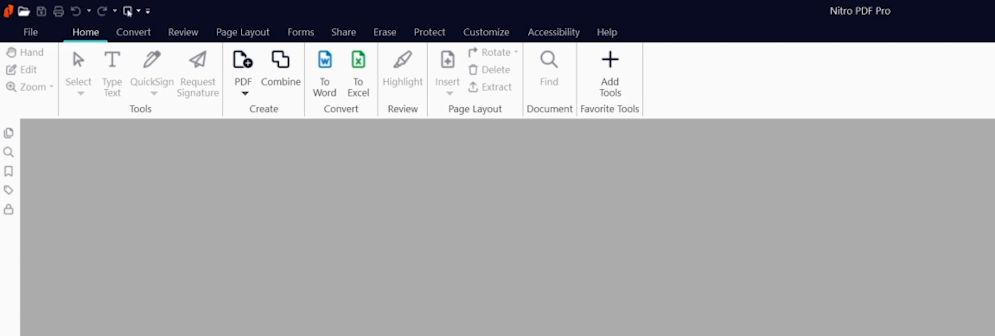
Nitro is built for business speed. It excels at batch conversions, allowing you to turn dozens of PDFs into Word docs at once. It’s a robust desktop tool, though it is primarily geared toward enterprise environments.
Why Systweak PDF Editor is Our Top Recommendation
While all these tools have their merits, Systweak PDF Editor offers the best balance of speed, security, and ease of use. It turns the “cleanup exercise” of conversion into a simple, one-click task.